














Wan 3.0: Image to Video
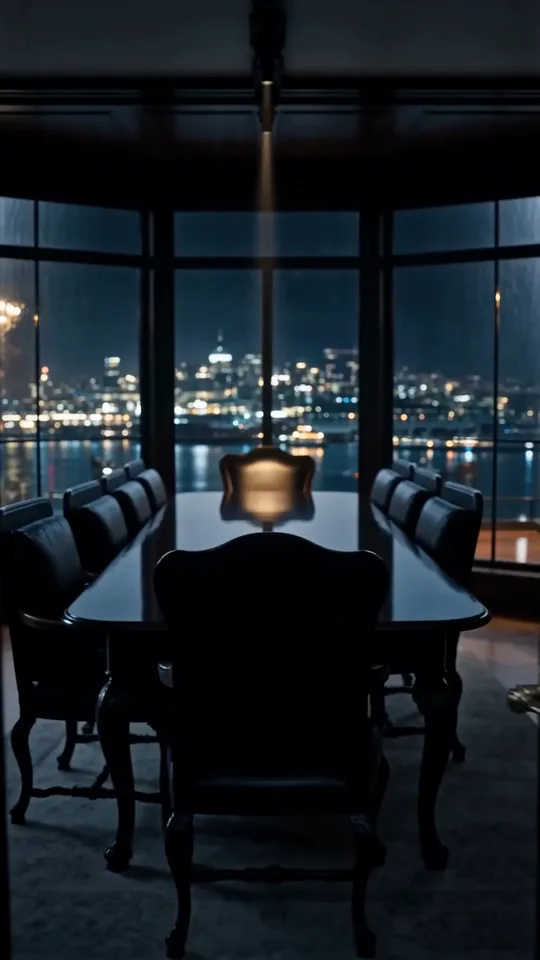
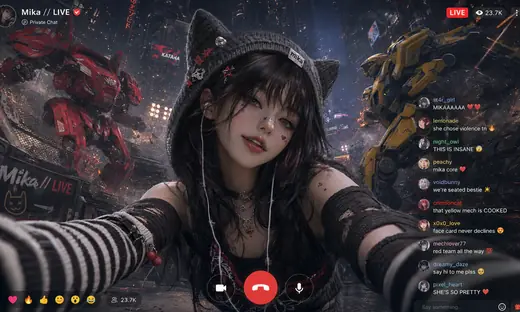
Image to Video with Wan 3.0, with the model already selected.


How it works
Try it now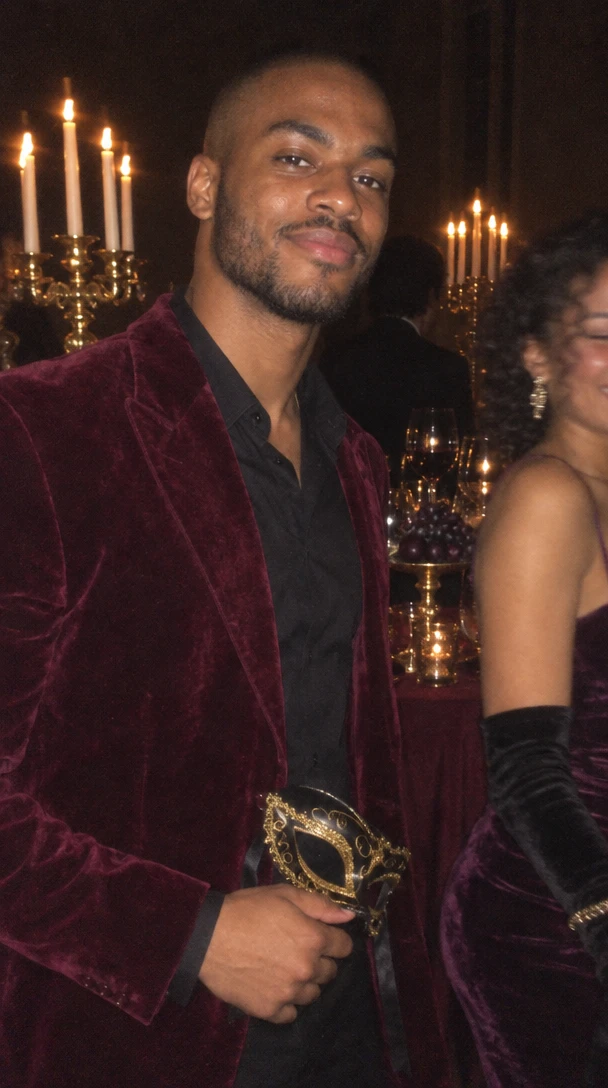 01
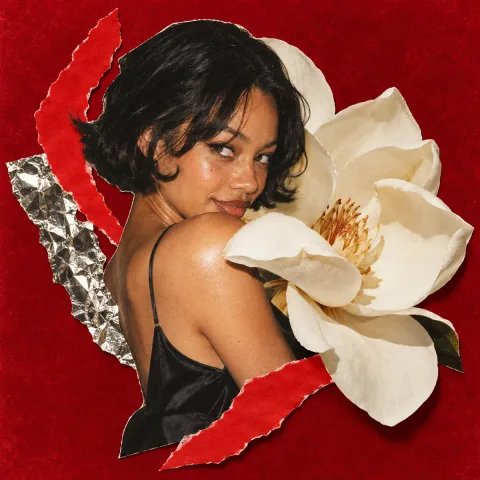
Add your start frame
Drop it in, or pick one of yours.
- 02
Say how it should move
A sentence or two is enough.
- 03
Make it
Start creating, then keep working with HowWorks.
Explore the possibilities
Wan 3.0 at a glance
- Good at
- Top-ranked text to video. 2–30s in one take, up to 1080p, up to 10 reference images.
- Modes
- Text to Video, Image to Video, Reference to Video
- Length
- 2–30 s (presets 5, 10, 15, 30 s)
- Resolution
- 480p, 720p, 1080p
- Aspect ratios
- 16:9, 9:16, 1:1, 4:3, 3:4
- Image-led framing
- May follow the input image; check the output frame
- Sound
- On by default, can be switched off
- Reference images
- Up to 10
About
Supply the opening picture and describe how the shot should move. Explain subject motion and camera movement separately, and keep the action consistent with what is visible in the source. Check the generated video for changes to the face or product, movement that was not requested, and the way the shot ends. Choose only the inputs and controls shown for this operation; other operations or model versions can have different limits.
Questions
Does Wan 3.0 use my picture as the starting frame?
Use the Start frame input for image to video. Describe movement and camera behaviour while naming the features to preserve. Watch for shape changes and framing drift throughout the clip, rather than judging the first frame alone.
What should I check in the Wan 3.0 image to video example?
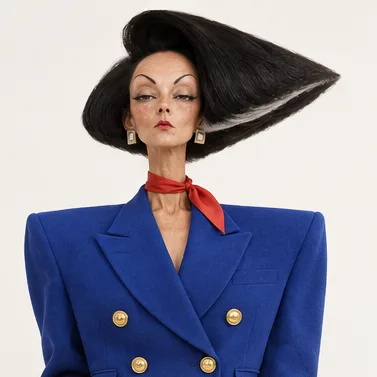
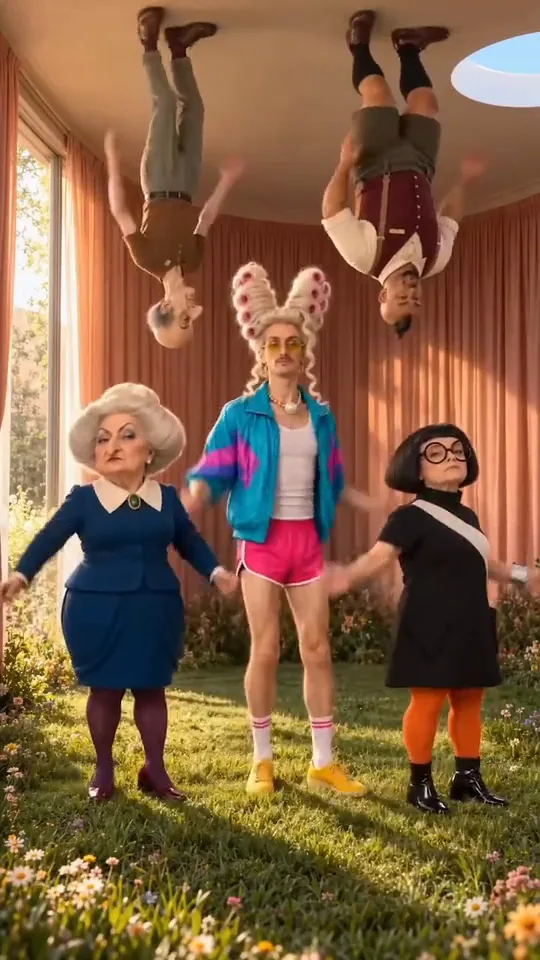
Watch subject identity, facial movement, hands and the background for changes. The portrait preview is a visual example; review sound separately when creating an audiovisual result.
Can Wan 3.0 make a silent video?
The current HowWorks model exposes a sound toggle. Choose the sound setting deliberately and check the finished file; the page’s visual preview does not guarantee the same soundtrack or result on a new run.


