














MiniMax H3 Image
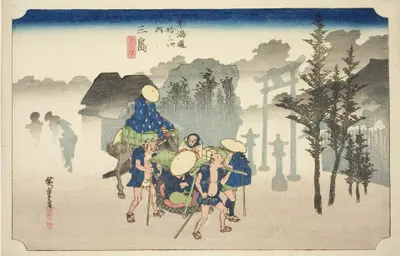
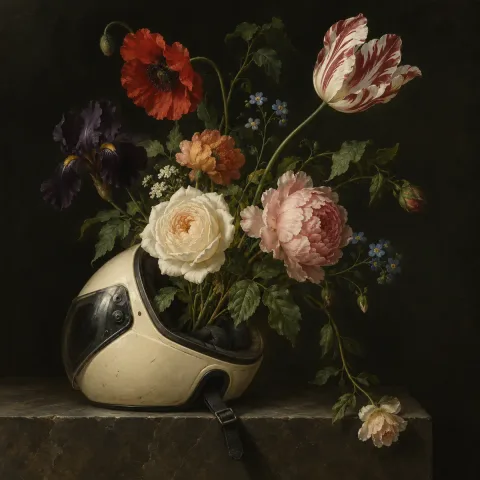
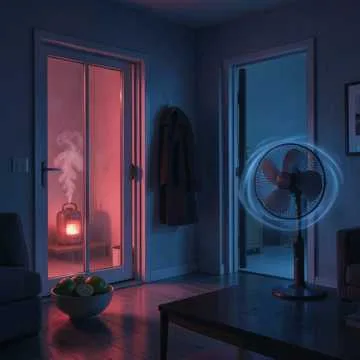
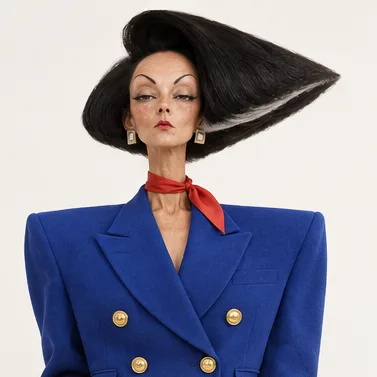
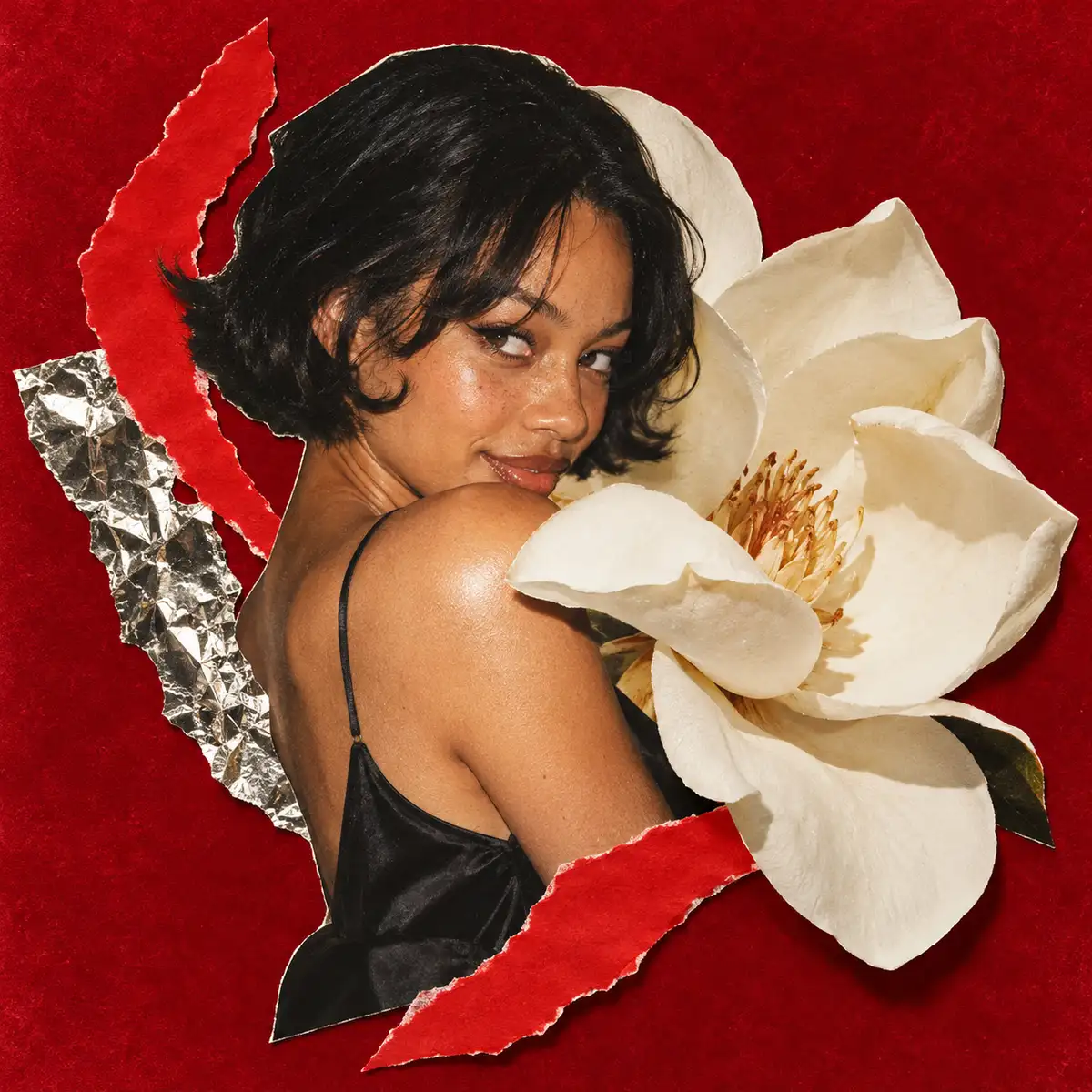
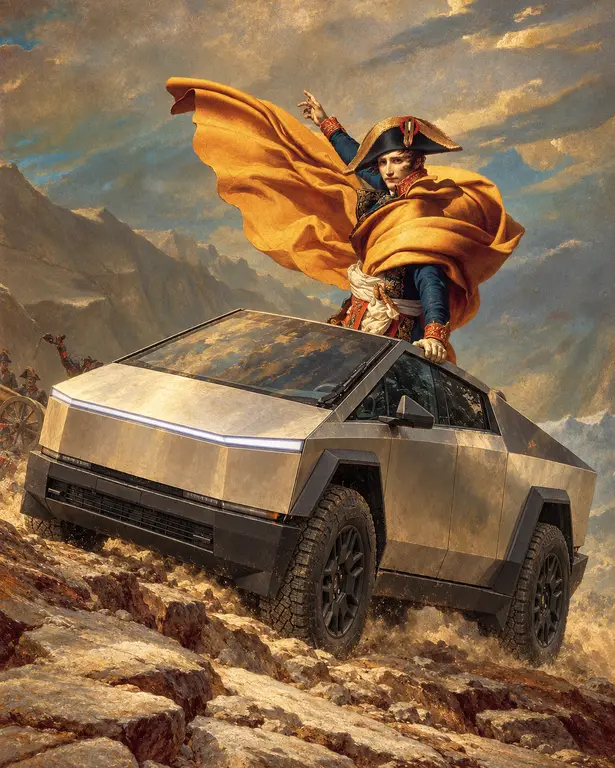
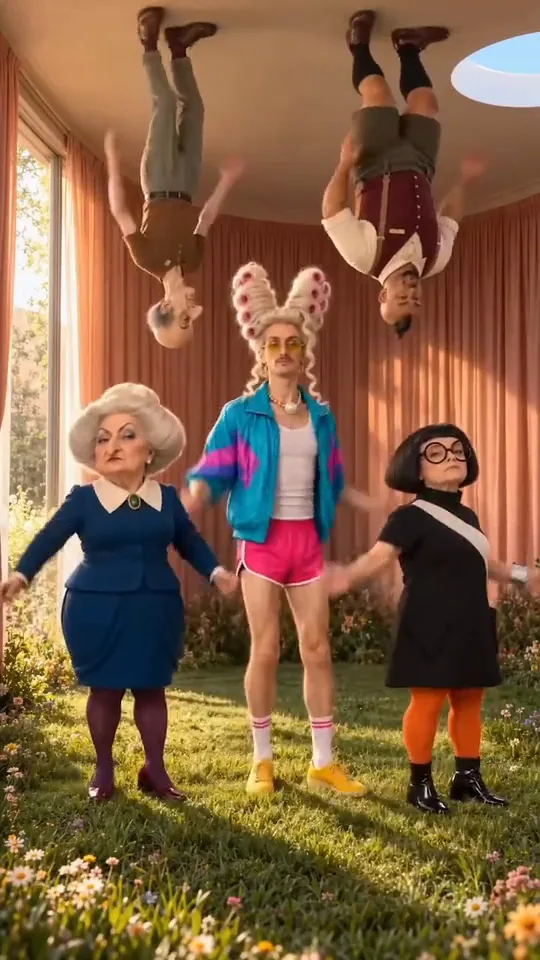
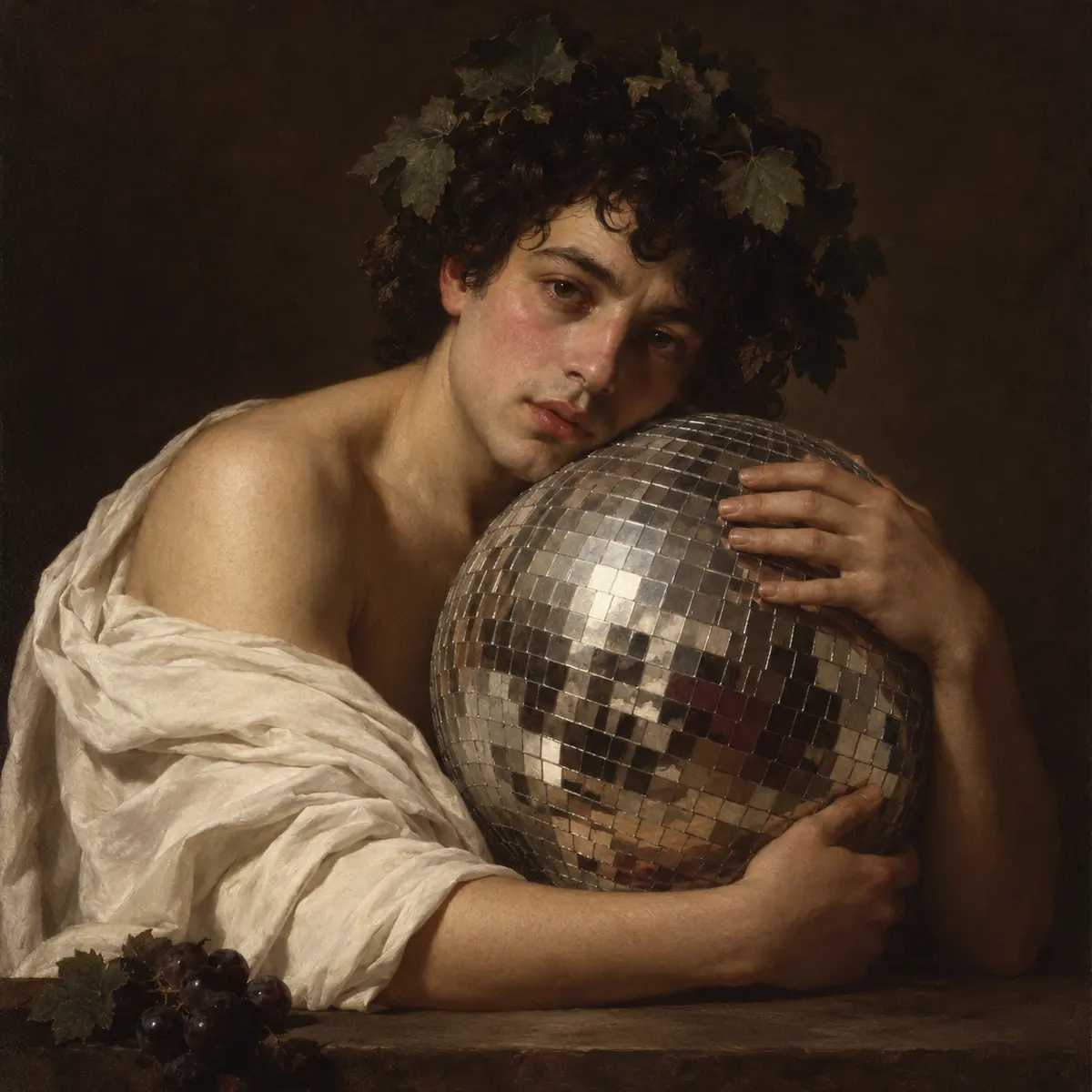
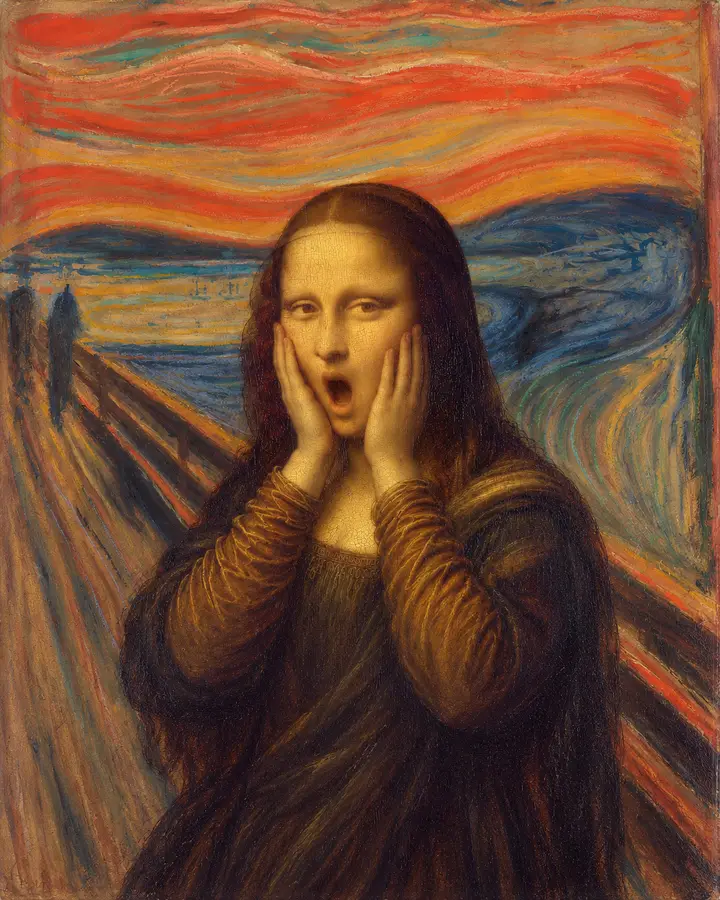
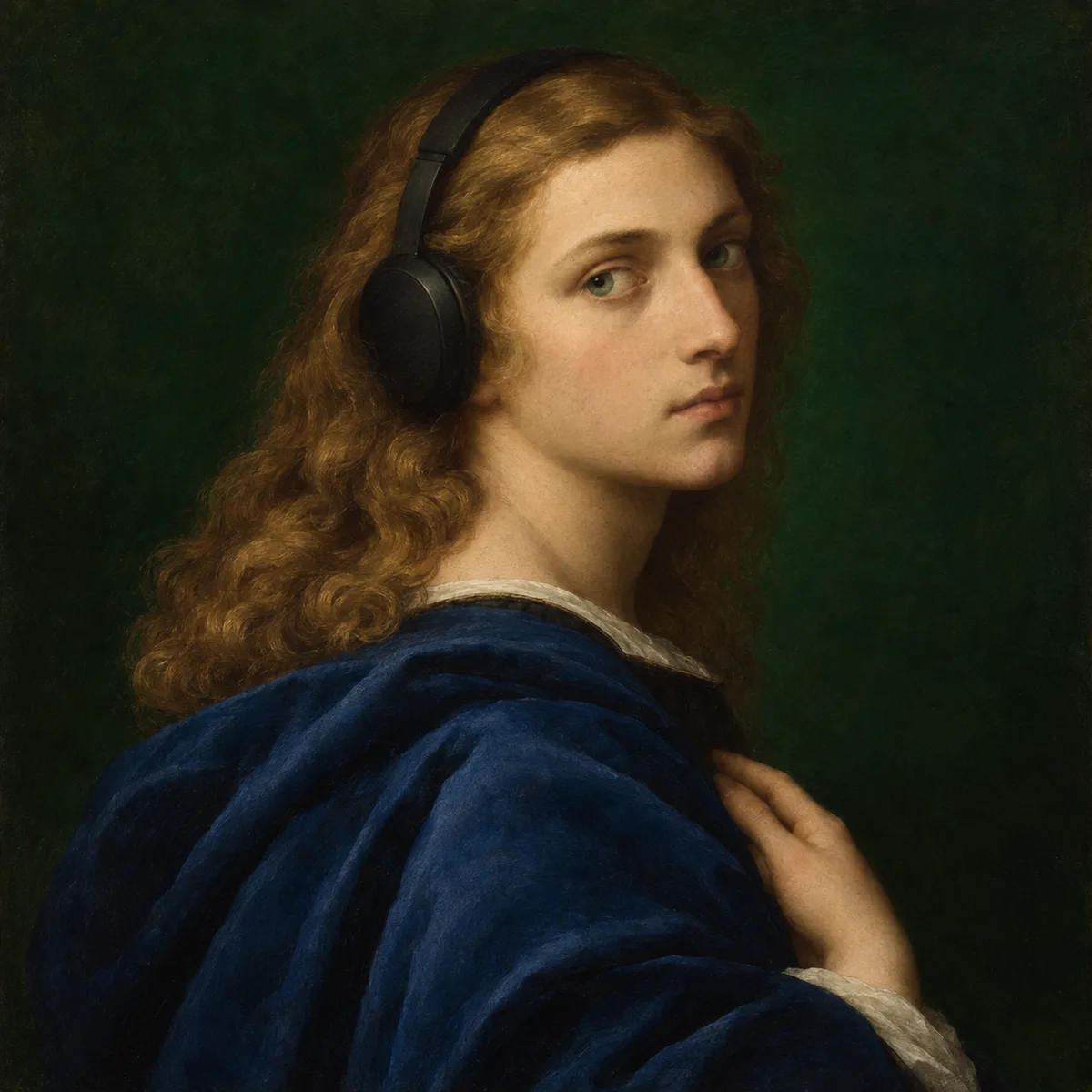
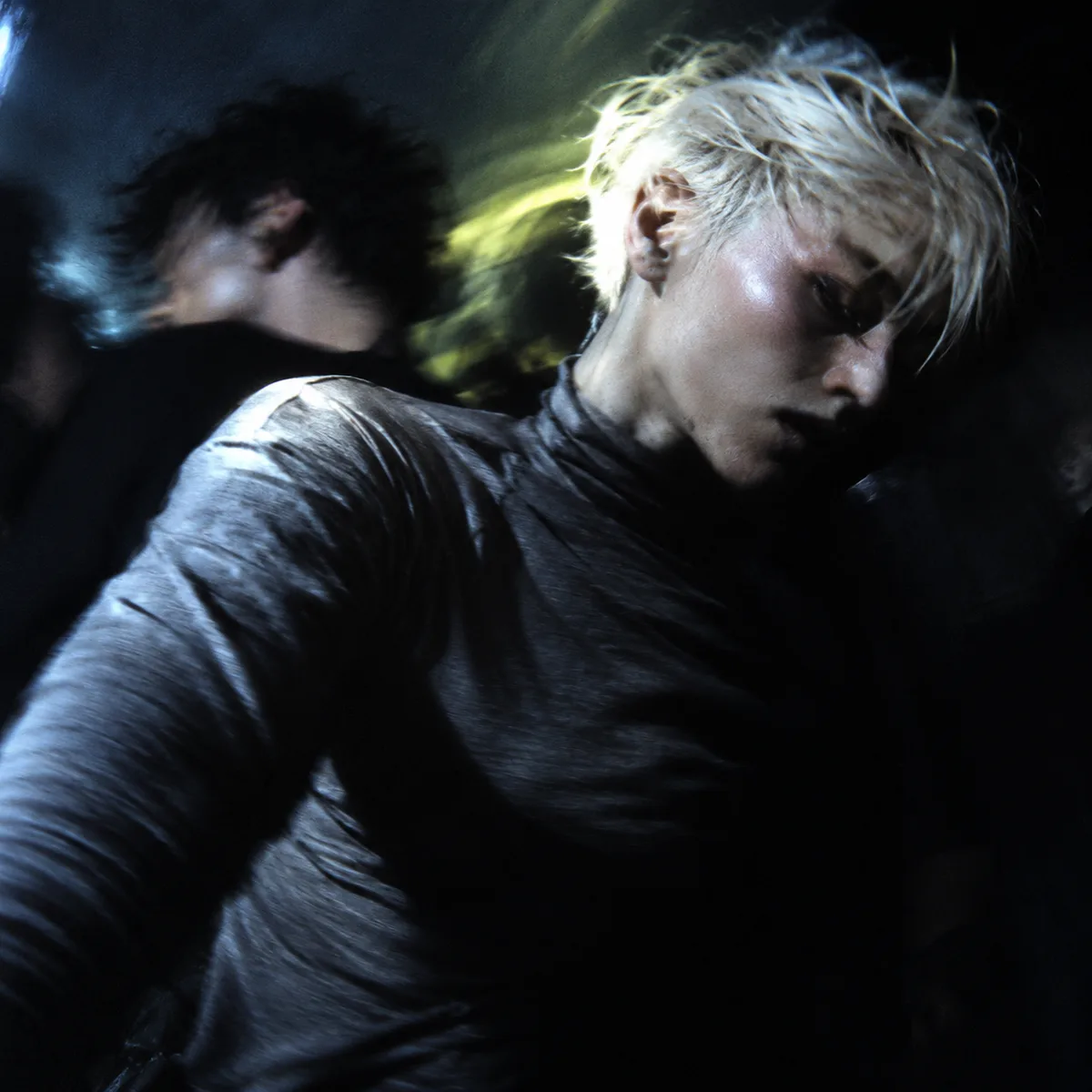
Build a detailed image from a clear visual brief.

How it works
Try it now- 01
Say what you want
A sentence or two is enough.
- 02
Use MiniMax H3 Image
Choose the settings that fit what you want to make.
- 03
Make it
Start creating, then keep working with HowWorks.
Explore the possibilities
MiniMax H3 Image at a glance
- Good at
- High-resolution images, detailed scenes and multi-image composition.
- Modes
- Text to Image, Image Editor
- Resolution
- 1K, 2K, 4K
- Aspect ratios
- Auto, 1:1, 4:3, 3:4, 16:9, 9:16
- Reference images
- Up to 16
- Output images per request
- 1–10
About
MiniMax H3 Image is an image-generation and editing choice in HowWorks. Describe the subject, composition, material, lighting and intended format rather than only naming a style. For a product image, explain what should stay recognisable and where the layout needs space. For an edit, attach the source and name the change you want. Native prompt enhancement is enabled by default; review the visible settings and the actual result. Keep a useful image in the project and refine it with another instruction.
Questions
How do I use MiniMax H3 Image in HowWorks?
Start with the model selected on this page. Write the brief, add the inputs required by your chosen operation and review the current settings before sending.
Which inputs and settings are supported?
The model specifications and controls on this page show the supported inputs and output settings. Availability can differ by operation; selecting a model does not enable every capability advertised elsewhere.
Does selecting this model change every AI tool in my project?
No. It selects the image generator for this task. The Agent conversation model and other generation tools have their own choices.
How should I evaluate the result?
Compare it with your brief and any source material. Check composition, fine detail, lettering and the intended output format.


