



GPT Image 2.5 Image Editor
Bring an image, describe the edit, and say which details should remain recognizable.

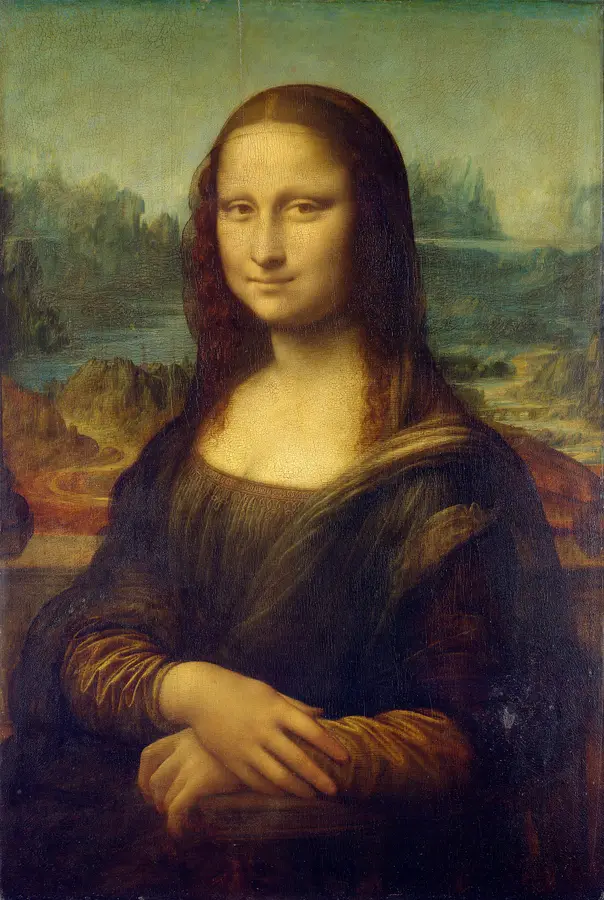

Image 1 is the Mona Lisa to edit and the identity source. Image 2 is the setting and action reference: Edvard Munch's The Scream. Place the SAME Mona Lisa from Image 1 on the foreground bridge in Image 2, taking the place of its central figure. She is now standing, both of her own hands pressed to the sides of her cheeks, her mouth open in a spontaneous exasperated scream. Keep her recognizable facial proportions, high forehead, fine barely visible eyebrows, long center-parted dark hair and veil, dark Renaissance dress and warm modeled skin. Her changed expression must still belong to Mona Lisa; do not replace her with Munch's bald mask-faced figure or a modern actress. Her hands are normal, five fingers each, and grow naturally from her sleeves. Borrow the strong diagonal bridge rail, tiny distant passersby, deep blue fjord and rolling coral-red and ocher sky from Image 2. Her body occupies the foreground with room for both hands and hair. Keep the delicate, dimensional old-master handling of her face and clothing; let the surrounding landscape become more rhythmically curved and agitated. Harmonize them with warm reds, muted teal and deep brown so it reads as one deliberate painted work, not a face pasted onto a reproduction. The scream is funny and human, not horror, injury or grotesque distortion. No words, meme lettering, frame, inset or split layout. One portrait 4:5 painting.
How it works
Try it now- 01
Add your image
Drop it in, or pick one of yours.
- 02
Say what to change
A sentence or two is enough.
- 03
Make it
Start creating, then keep working with HowWorks.
Explore the possibilities



GPT Image 2.5 at a glance
- Modes
- Text to Image, Image Editor
- Aspect ratios
- Auto, 1:1, 4:3, 3:4, 16:9, 9:16
- Reference images
- Up to 9
- Output images per request
- 1–4
- Quality
- Low, Medium, High, Auto
About
Edit a picture with GPT Image 2.5 using a prompt that makes the change clear. Upload the source image, describe what should change and identify the details to preserve. Add useful references for a setting, subject or style rather than leaving their purpose implicit. This entry keeps GPT Image 2.5 selected for image editing, with the model’s shape, quality and output-count controls. Compare the result with your original before making the next revision.
Questions
How do the image roles differ?
Use the image-to-edit role for the picture you want to revise. A style reference guides its visual treatment; a character reference guides the subject you want to keep recognizable. State each image’s purpose in the brief and review how the result uses it.
How do I ask for a focused edit?
Name the subject or area, the change and the details to preserve. For example: replace the background with a pale wall; keep the cup's shape, handle, glaze and camera angle recognizable. Compare the full output with the source.
How many reference images can I add?
Add up to nine reference images. Give each one a role: the image to edit, a style reference or a character reference.
How does the editor handle image shape?
The default frame is 4:3. You can choose square 1:1, landscape 4:3 or 16:9, portrait 3:4 or 9:16, or select Auto for an automatic frame shape. Check the crop and newly generated edges in the result.
Which quality and output count does the editor use?
Choose low, medium, high or Auto quality. High is the default, and Auto uses high. Start with one image, or request up to four. Compare each edit with the source.
Will everything outside my edit stay exactly the same?
Compare the result with the source rather than assuming every other detail stayed fixed. Inspect faces, text, patterns, reflections and product features. If an important detail changes, make the next revision more focused and review it again.
Keep exploring
 ModelGPT Image 2.5
Up to 9 references
 Model featureGPT Image 2.5 Text to Image
Up to 9 references
 FeatureAI Image Editor
Changes to an existing image
 ModelFlux 2 Pro
Up to 9 references
 ModelNano Banana 2.1
4K · Up to 9 references
 Use caseAlbum Cover Generator
Square artwork for a release
 Use caseProduct Photography
A new setting for your product image
 Use caseThumbnail Generator
Landscape concepts for a video