



MiniMax H3 Max Image to Video
Use the picture as your opening. Direct the motion that comes next.


Whoops! Total... Intentional drift! You guys love that, don't you? Ashen? Hey, it's me. Keep this line open, yeah?
How it works
Try it now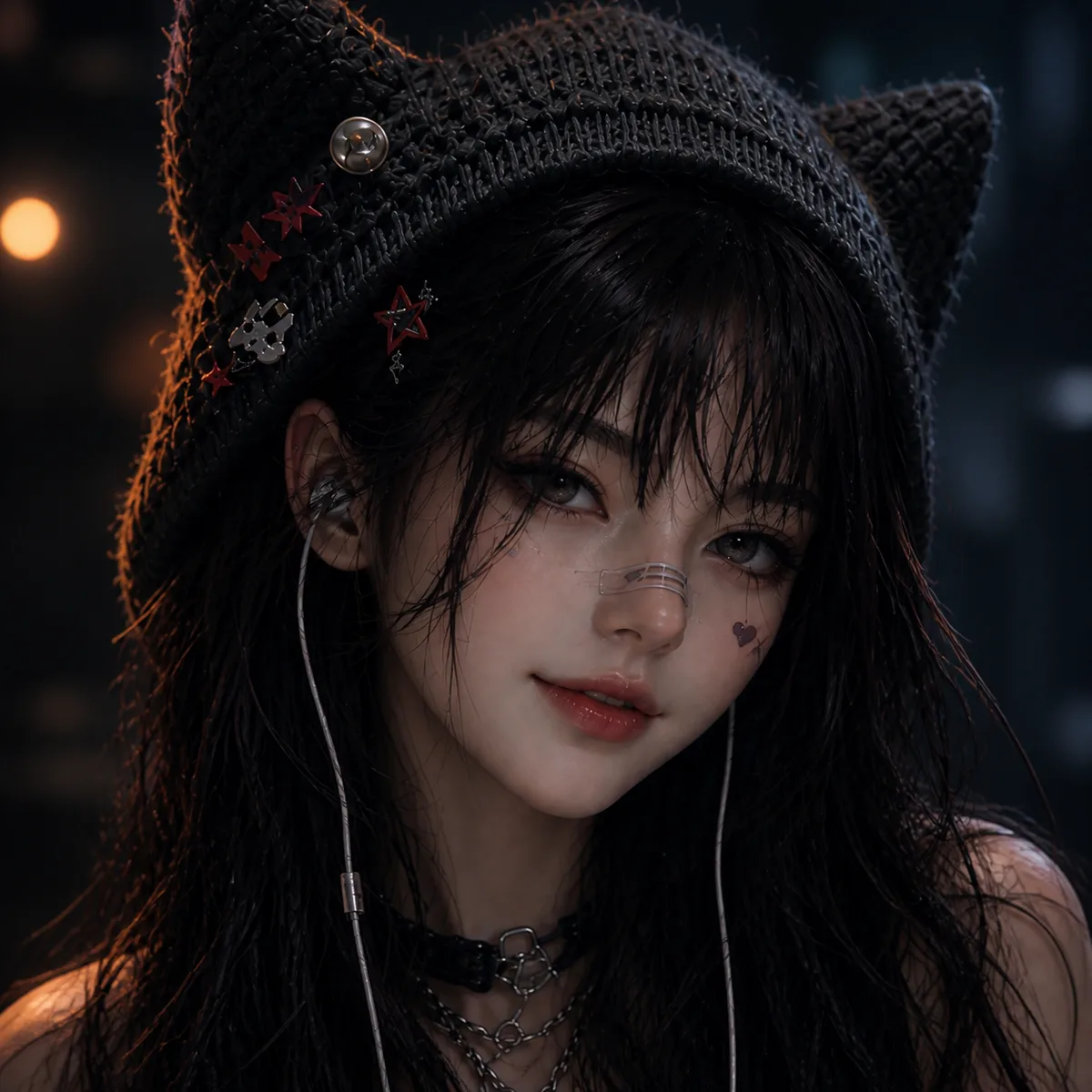 01
01Add your start frame
Drop it in, or pick one of yours.
- 02
Say how it should move
A sentence or two is enough.
- 03
Make it
Start creating, then keep working with HowWorks.
Explore the possibilities
MiniMax H3 Max at a glance
- Good at
- Fastest to render, with a Turbo tier for quick drafts. 5–15s, up to 1080p.
- Modes
- Text to Video, Image to Video, First & Last Frame, Reference to Video
- Length
- 5–15 s (presets 5, 10, 15 s)
- Resolution
- 480p, 720p, 1080p
- Aspect ratios
- 16:9, 9:16, 1:1, 4:3, 3:4, 21:9
- Image-led framing
- May follow the input image; check the output frame
- Sound
- Always on
- Reference images
- Up to 9
- Tiers
- Standard · Turbo
About
Start from an image when the opening already contains the visual idea: a product scene, a portrait or an illustrated environment. MiniMax H3 Max starts from the supplied image and offers Standard or Turbo for this operation. Describe one movement and the sound around it, then choose 5–15 seconds and output through 1080p. Audio is included, so a quiet scene still benefits from a clear sound brief. Inspect the source subject across the clip, particularly faces, product shapes and lettering that may change as the subject or camera moves.
Questions
How does MiniMax H3 Max use my image?
It supplies the start frame. Prepare the image for your intended frame, check any available aspect setting and inspect the output crop. Describe the movement that should follow. Use Reference to Video when the picture should guide a new scene rather than supply its opening.
Is image-to-video available on Turbo?
Yes. The current configuration supports image-to-video on Standard and Turbo. Reference-to-video is a separate operation and is not supported on Turbo.
How do I choose length and output size?
Choose 5–15 seconds and 480p, 720p or 1080p. Prepare the source composition for the intended placement, then inspect the generated clip at its display size.
Can I request no generated sound?
MiniMax H3 Max always includes audio. Describe restrained ambience when it suits the scene; remove or replace the soundtrack in editing if the final use needs silence.
What should I check for a person or product?
Compare identifying features, proportions, labels and edges with the source throughout the clip. Focus the requested motion and inspect the result rather than assuming the first image locks every later detail.
Keep exploring
 ModelMiniMax H3 Max
5–15 s · 1080p · Sound
 FeatureImage to Video
Start with your image
- Model featureMiniMax H3 Max First & Last Frame
5–15 s · 1080p · Sound
 ModelMiniMax H3
5–15 s · 4K · Sound
 ModelSeedance 2.0
4–15 s · 4K · Sound
 ModelSeedance 2.5
4–30 s · 1080p · Sound
 Use caseAI Animation Generator
Make an animated scene
 Use caseAI TikTok Video Generator
Plan a vertical short