



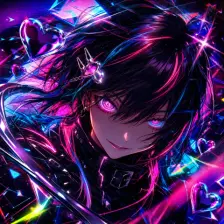
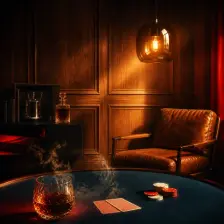


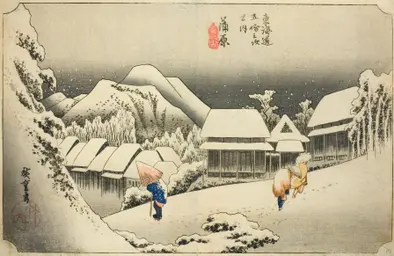
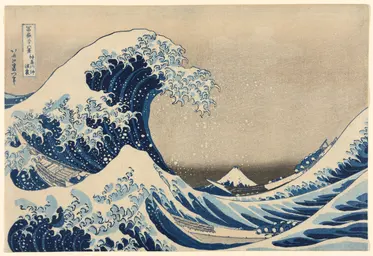

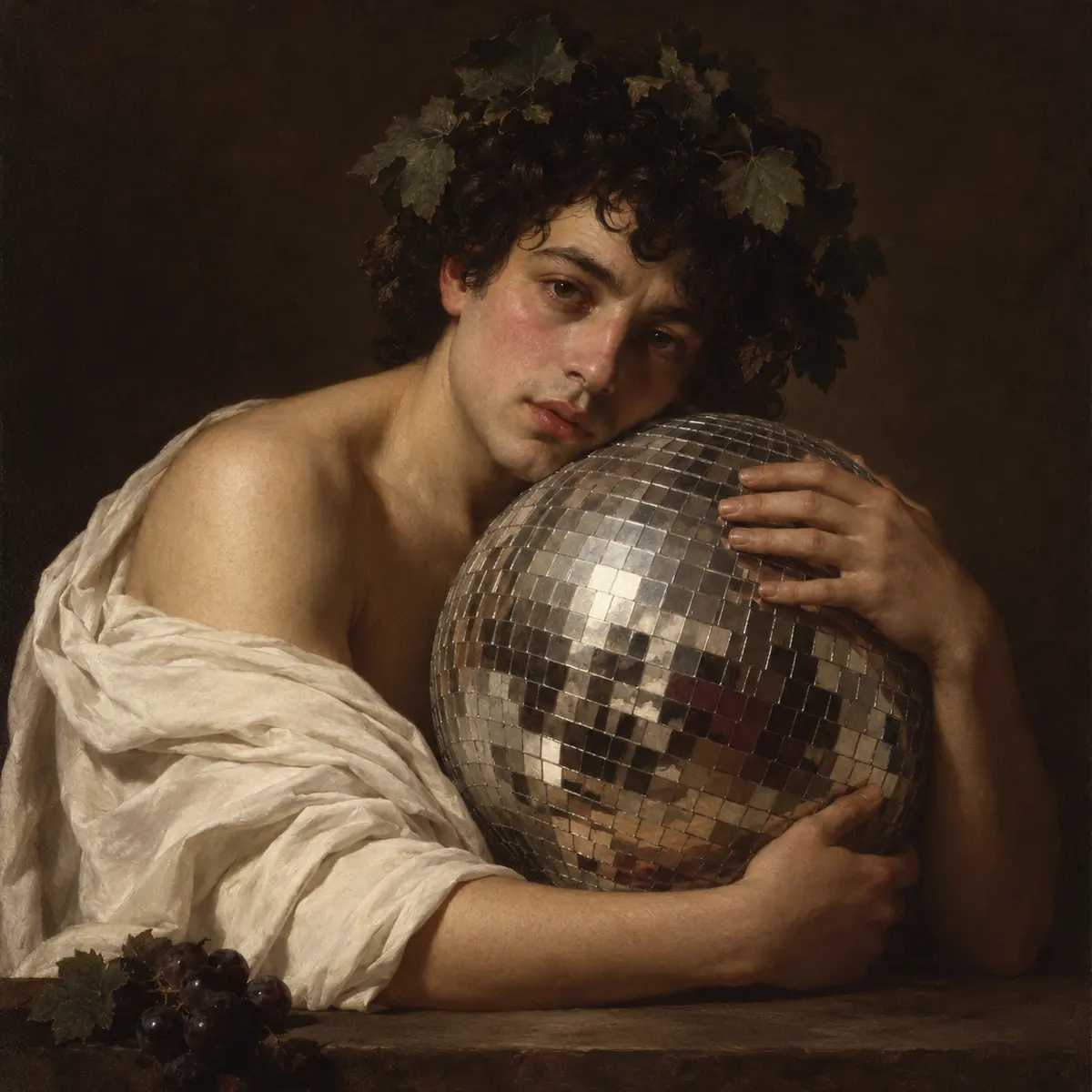
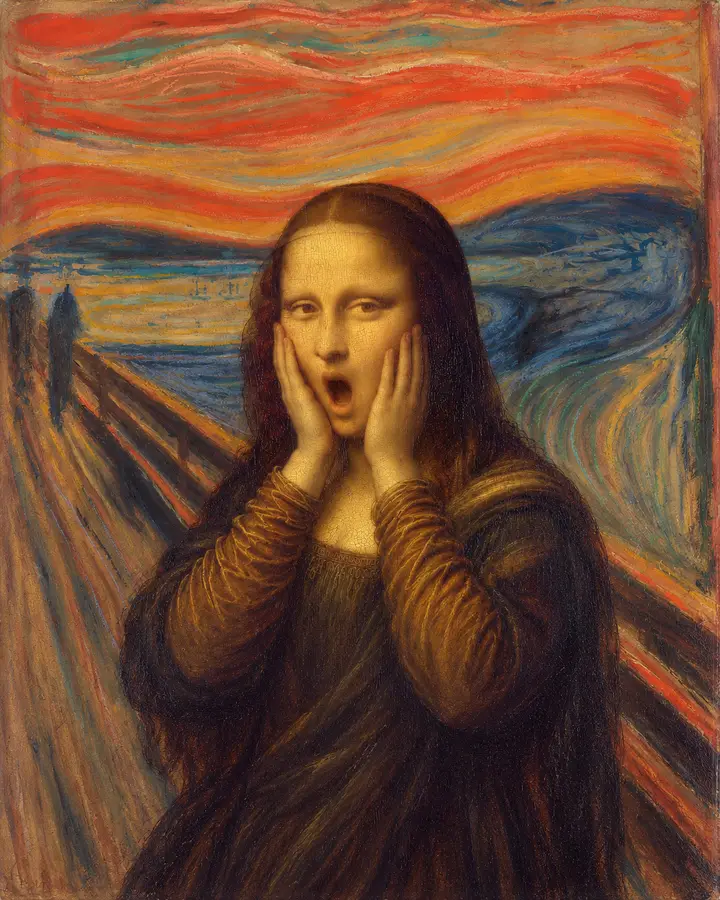
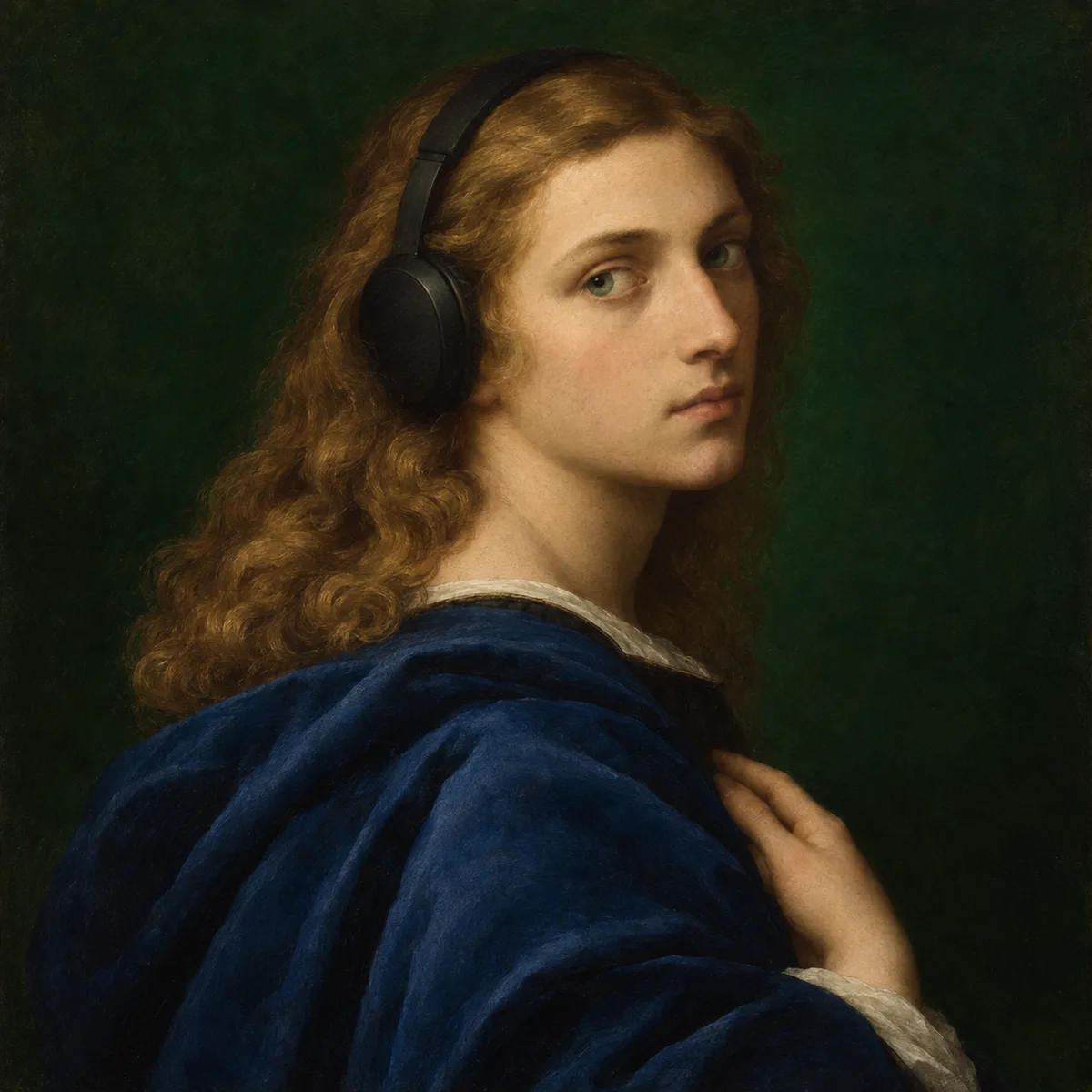
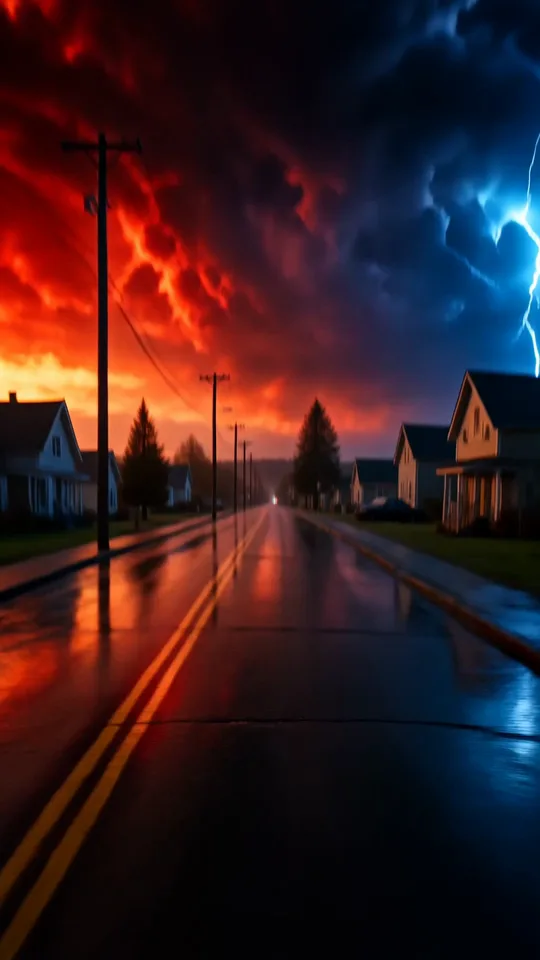



GPT Image 2.6 Flare: Text to Image
Text to Image with GPT Image 2.6 Flare, with the model already selected.

How it works
Try it now- 01
Say what you want
A sentence or two is enough.
- 02
Use GPT Image 2.6 Flare
Choose the settings that fit what you want to make.
- 03
Make it
Start creating, then keep working with HowWorks.
Explore the possibilities

GPT Image 2.6 Flare at a glance
- Good at
- Fast GPT Image generation, transparency, precise edits and SVGs.
- Modes
- Text to Image, Image Editor
- Resolution
- 1K, 2K, 4K
- Aspect ratios
- Auto, 1:1, 4:3, 3:4, 16:9, 9:16
- Reference images
- Up to 16
- Output images per request
- 1–10
- Quality
- Low, Medium, High, Xhigh, Max, Auto
About
Start with a visual brief: subject, layout, materials, lighting and the space the design needs. Add exact wording only when lettering belongs in the image, then inspect the actual spelling and composition. The selected model creates a new picture; it does not require an input image. Choose only the inputs and controls shown for this operation; other operations or model versions can have different limits.
Questions
What should I describe for GPT Image 2.6 Flare text to image?
Name the subject, setting, lighting and composition. Put exact wording in quotation marks when you need text in the picture. The selected example is a starting point for a new image, not a promise of an identical result.
What file should I use for this GPT Image 2.6 Flare task?
PNG, JPEG and WebP cover ordinary image work. Choose the aspect ratio for the intended placement, then inspect text, product details and edges at the final display size. An image request does not create an animated GIF.
How should I review the GPT Image 2.6 Flare example?
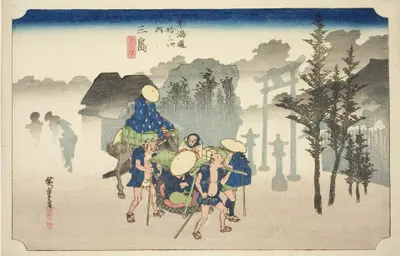
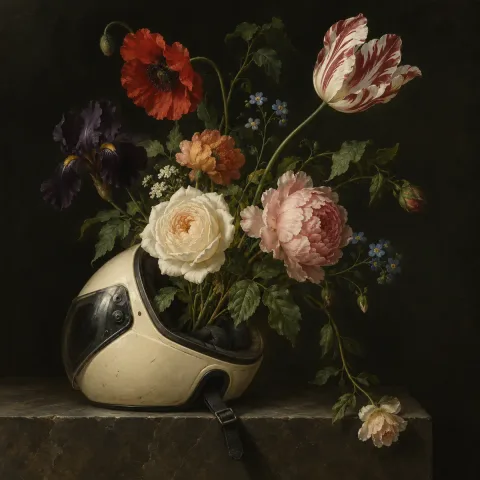
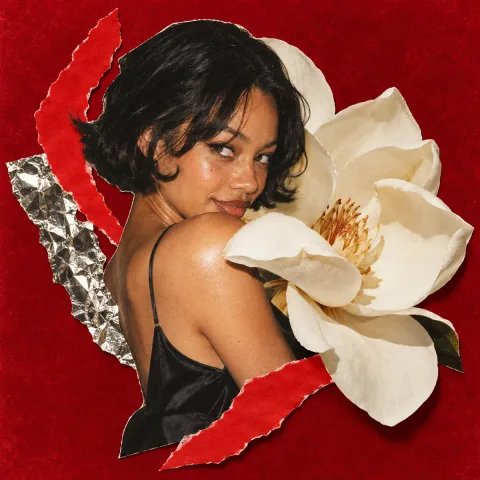
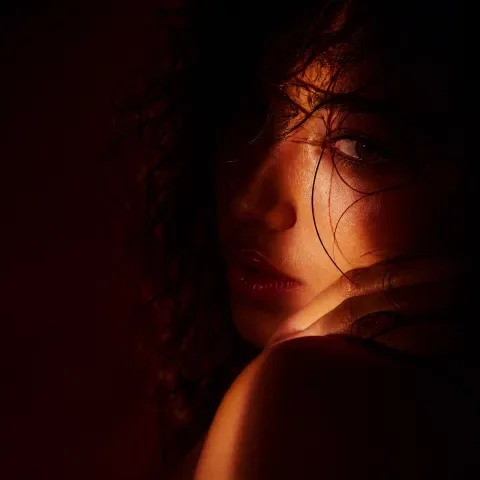
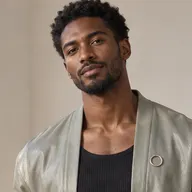
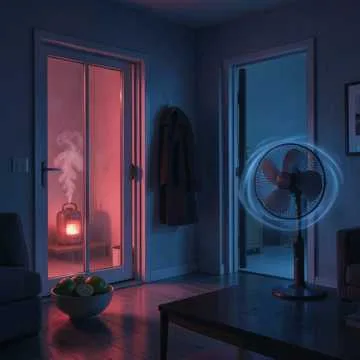
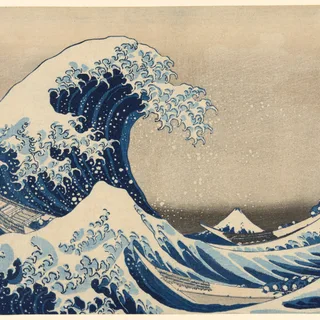
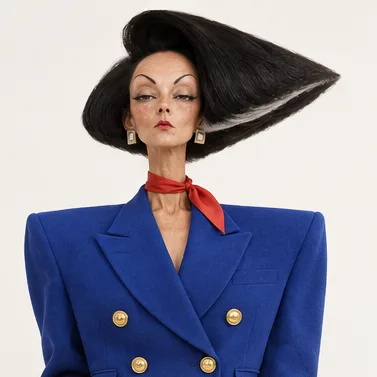
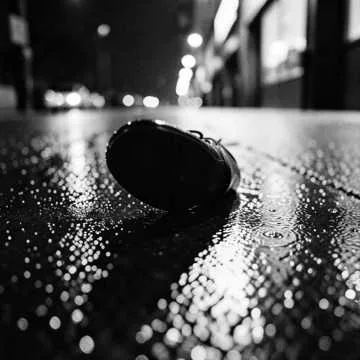
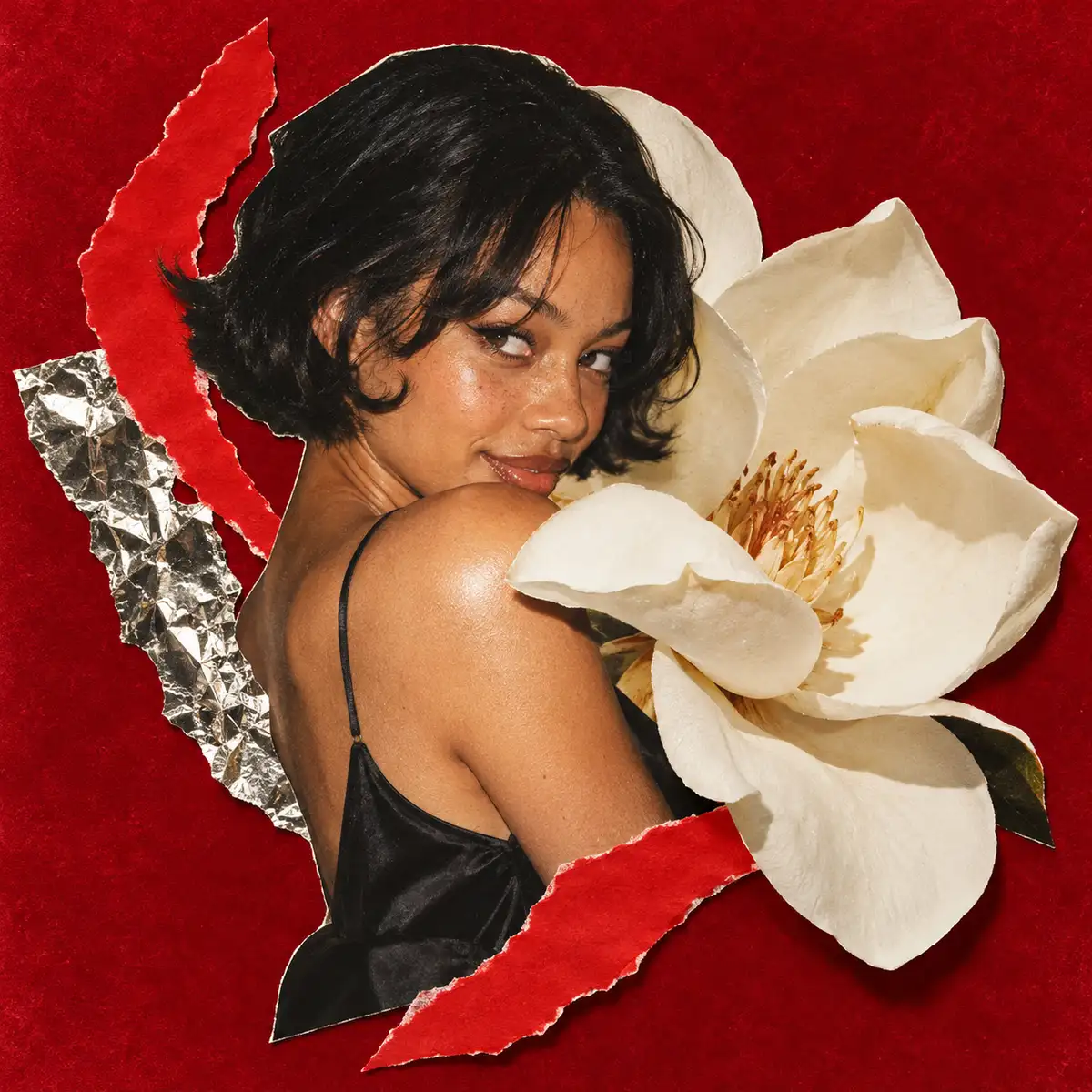
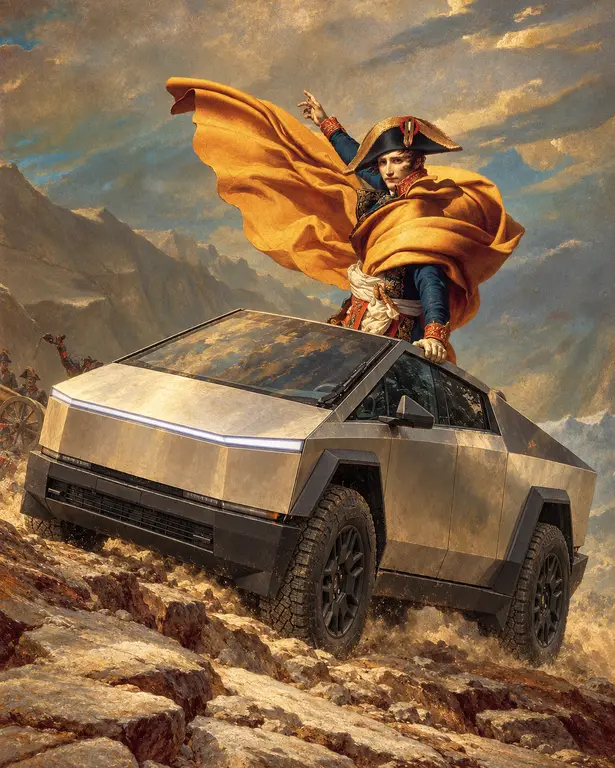
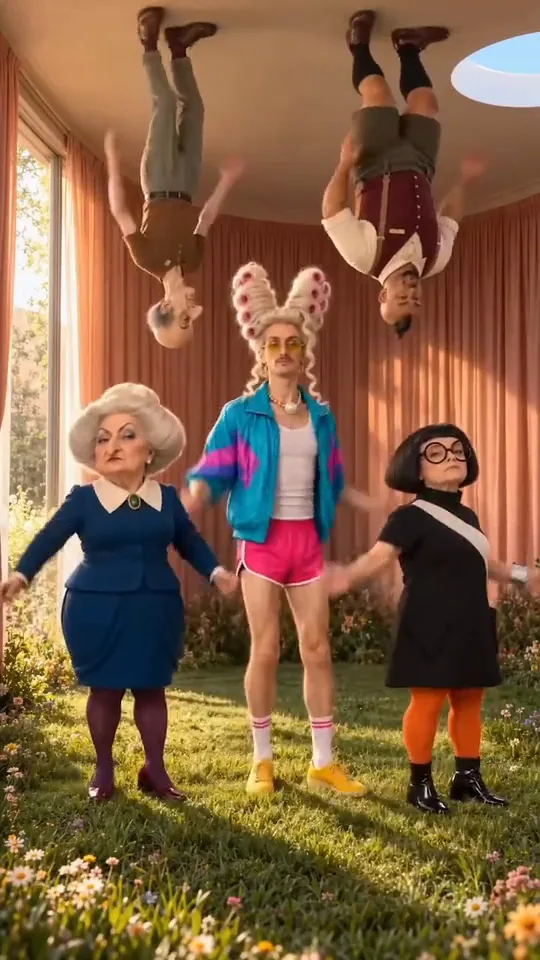
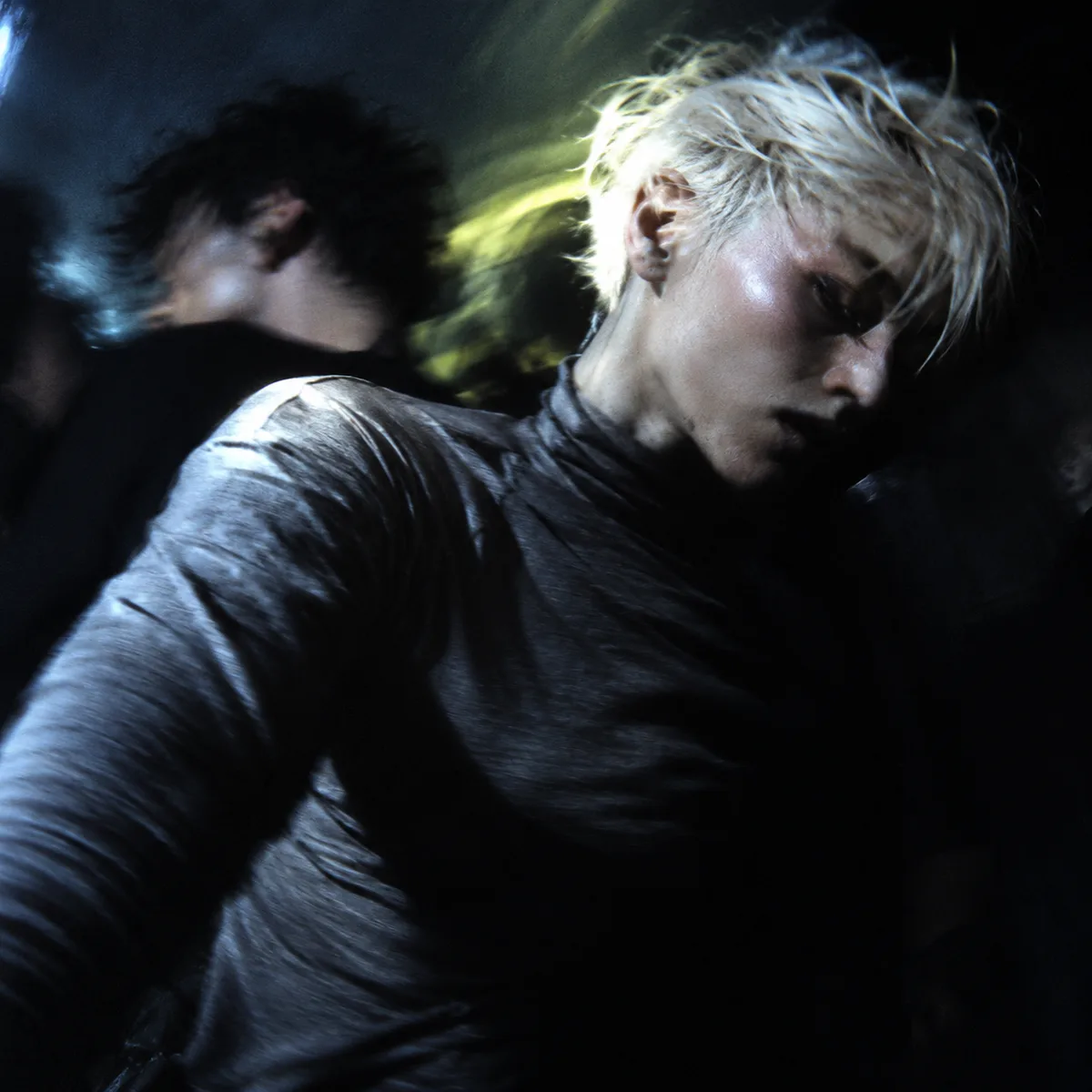
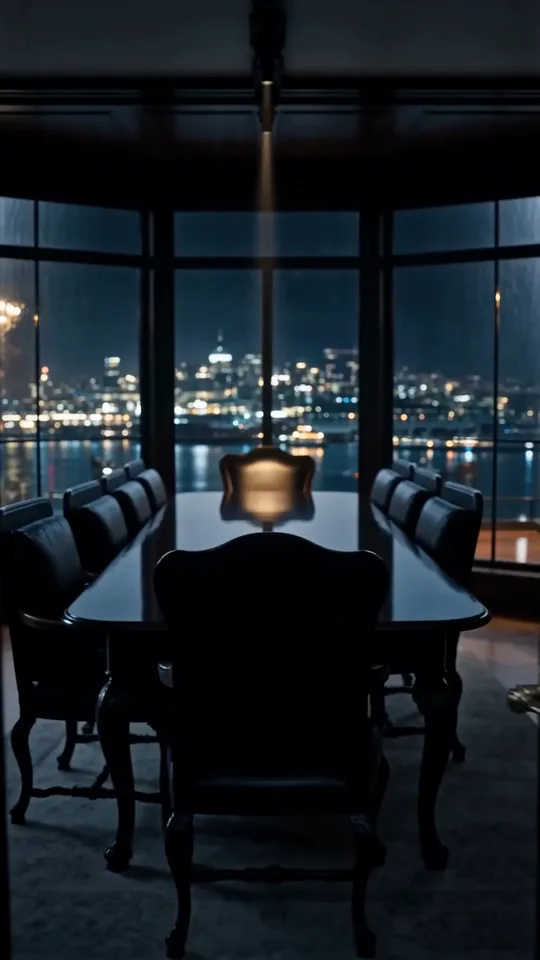
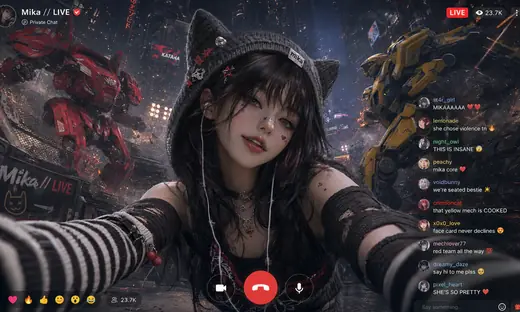
Check the exact written text, composition and product appearance. The selected poster or photograph shows this model’s actual output; use it to shape your brief rather than treating it as a general quality ranking.


